Spot the warning signs of a phishing email before you click a link or open an attachment.
Recognising Phishing Emails
Phishing is the most common entry point for cyberattacks worldwide. An attacker sends you a convincing email to get your password or to get you to open an attachment.
How a Phishing Attack Works
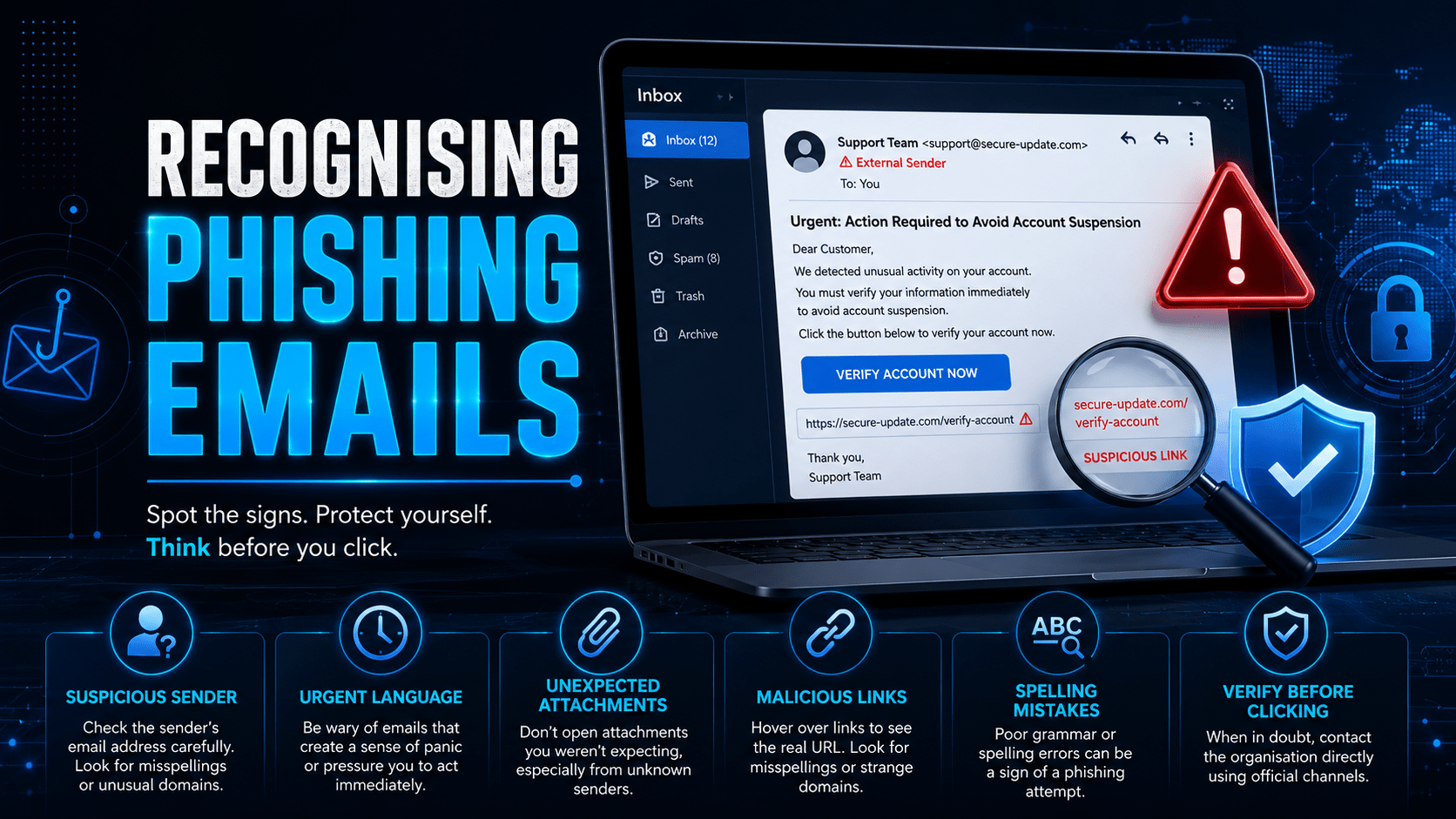
Anatomy of a Phishing Email
Attackers reuse a small set of tricks. This example carries four of them.
⛔ Important
Never click links or open attachments in unexpected emails, even when the sender looks legitimate. Attackers can spoof display names. Check the domain after the @ and read it character by character, because lookalike substitutions are common.
Red Flags Checklist
| Red Flag | What to Look For |
|---|---|
| Sender domain | Does the domain after @ match the real company exactly? |
| Urgency / threats | “Act now or lose access”. Legitimate companies do not demand this |
| Unexpected attachment | Were you expecting this file? .zip, .exe, .doc with macros are high risk |
| Hover URL | Hover over links. Does the real URL match the display text? |
| Generic greeting | “Dear Customer” instead of your name suggests a mass phishing blast |
| Request for credentials | No legitimate service will ever ask for your password via email |
Spear Phishing vs Mass Phishing
- Mass phishing: sent to millions, generic content, relies on volume
- Spear phishing: aimed at one person, using your name, employer and role scraped from LinkedIn. These succeed far more often than mass blasts.
⚠ Warning
Attackers now draft spear phishing emails with AI, personalised using details scraped from LinkedIn and your company website. Expect correct spelling, your real name and your employer. You cannot sort these by how they look.
What To Do With a Suspicious Email
- Don’t click any links or open attachments
- Report it to IT using your organisation’s reporting method (e.g., the “Report Phishing” button in Outlook)
- Delete it after reporting
- If you clicked, tell IT immediately. The sooner they know, the faster they can contain the damage.
✓ Key Point
When in doubt, type the address into your browser yourself rather than using the link in the email. If it claims to be from your bank, open a new tab and go to the bank’s site.
Mobile Techs IT Consulting
Would your team click it?
One convincing email can hand an attacker your inbox and everything in it. Mobile Techs IT Service sets up email security and spam filtering, configures SPF, DKIM and DMARC, trains your staff to spot phishing, and responds fast when someone has already clicked. Home users welcome too, on-site or remote, anywhere in Australia.
Get your email security checked Talk to us first
Call 1300 644 588 · office@mobiletechs.com.au
More on our managed IT services and remote security audit.