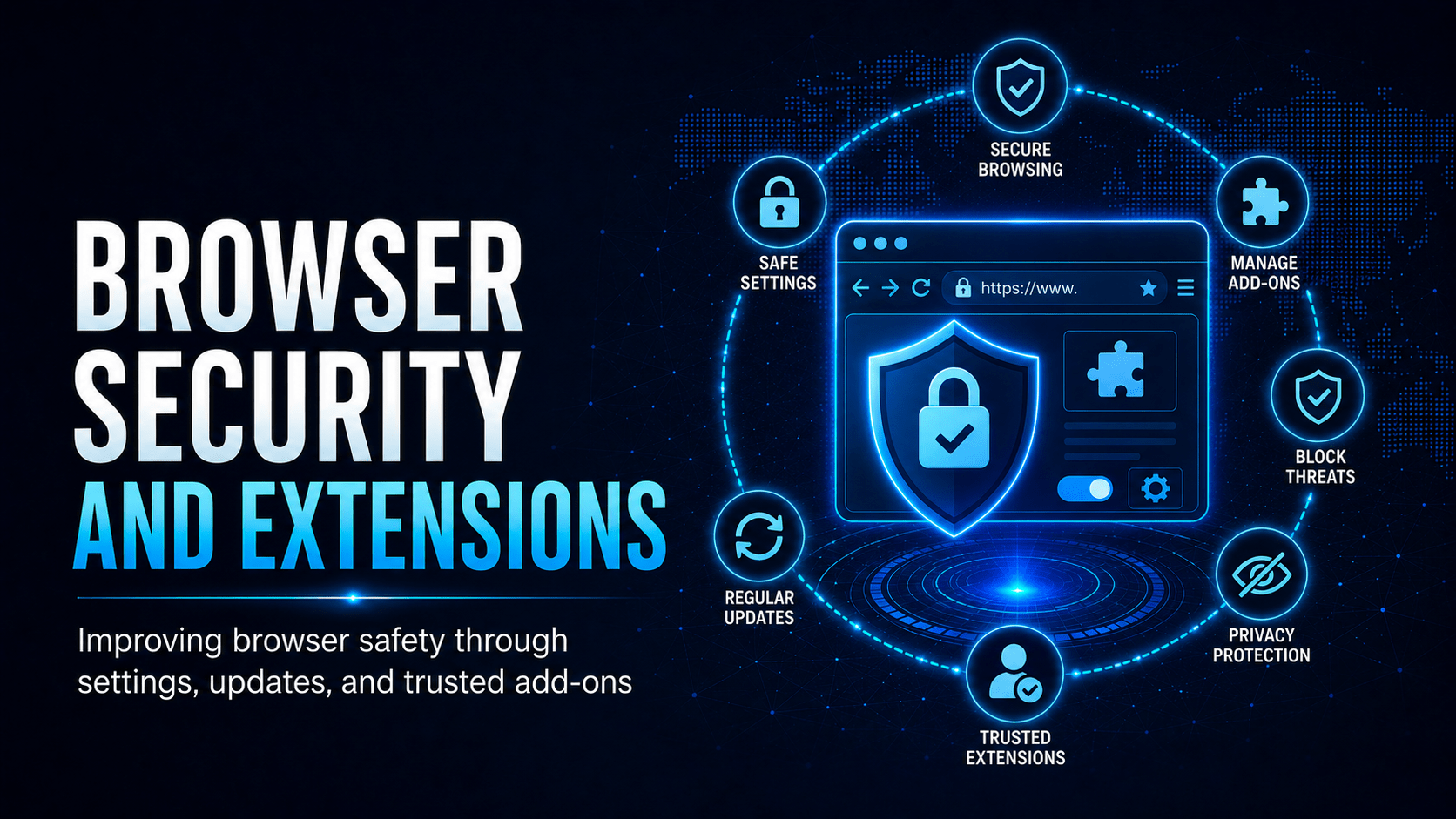
How to keep your browser secure, spot risky extensions, and protect yourself from web-based threats.
Browser Security and Extensions
Your web browser is one of the most used applications on your computer, and one of the most attacked. Using it well protects you from malware, credential theft and privacy violations.
Extension Permission Risk
⛔ Important
A browser extension with “read and change all your data on all websites” can act as a keylogger for every site you visit, including your banking portal, work systems and email. Malicious extensions have stolen credentials from millions of users. Only install extensions approved by your IT team.
Keep Your Browser Updated
Browser vendors ship security patches most weeks. An outdated browser is one of the most common ways malware reaches a computer.
✓ Key Point
Enable automatic updates for your browser. Restart your browser regularly, because many updates don’t apply until you do. In Chrome or Edge, click the three-dot menu. If it shows a coloured update icon in green, orange or red, restart immediately to apply the pending security update.
HTTPS and URL Verification
| Browser Indicator | What It Means | Trust It? |
|---|---|---|
| 🔒 Padlock + https:// | Connection is encrypted | Encryption only. Verify the domain too |
| Domain matches expected | You’re on the right site | Yes |
| âš “Not Secure” / http:// | Unencrypted, anyone can intercept | No. Don’t enter credentials |
| Certificate warning | Cert expired or untrusted | No. Do not proceed |
| Lookalike domain (micros0ft.com) | Phishing site | No. Close it immediately |
Cookies and Session Security
Session cookies prove you are logged in, so an attacker who steals one impersonates you without needing your password.
⚠ Warning
Avoid checking “Remember me” on sensitive sites (banking, work portals) on shared or public computers. A session cookie stays active until the session expires or you log out. Log out of sensitive applications when you finish, especially on shared machines.
Safe Browsing Habits Checklist
| Habit | Benefit |
|---|---|
| Keep browser auto-updated | Patches exploited vulnerabilities quickly |
| Only install IT-approved extensions | Prevents credential theft via malicious add-ons |
| Verify full domain before entering credentials | Catch phishing and lookalike sites |
| Log out of sensitive apps when done | Prevents session hijacking |
| Use approved password manager | Avoid credential reuse; autofill only on correct domain |
| Don’t override security certificate warnings | Certificate warnings protect you, so believe them |
| Avoid saving passwords in the browser | Use a dedicated password manager instead |
Mobile Techs IT Consulting
What are your browsers letting in?
One rogue “free VPN” extension can keylog every password your team types, without anyone noticing. Mobile Techs IT Service helps Gold Coast businesses keep browsing safe: managed browser policies and extension control, web filtering, automatic patching, and a properly deployed password manager. Home users welcome too, on-site or remote, anywhere in Australia.
Get your endpoints secured Talk to us first
Call 1300 644 588 · office@mobiletechs.com.au
More on our managed IT services and remote security audit.