How attackers use malicious QR codes to bypass email security filters and steal credentials.
QR Code Phishing (Quishing)
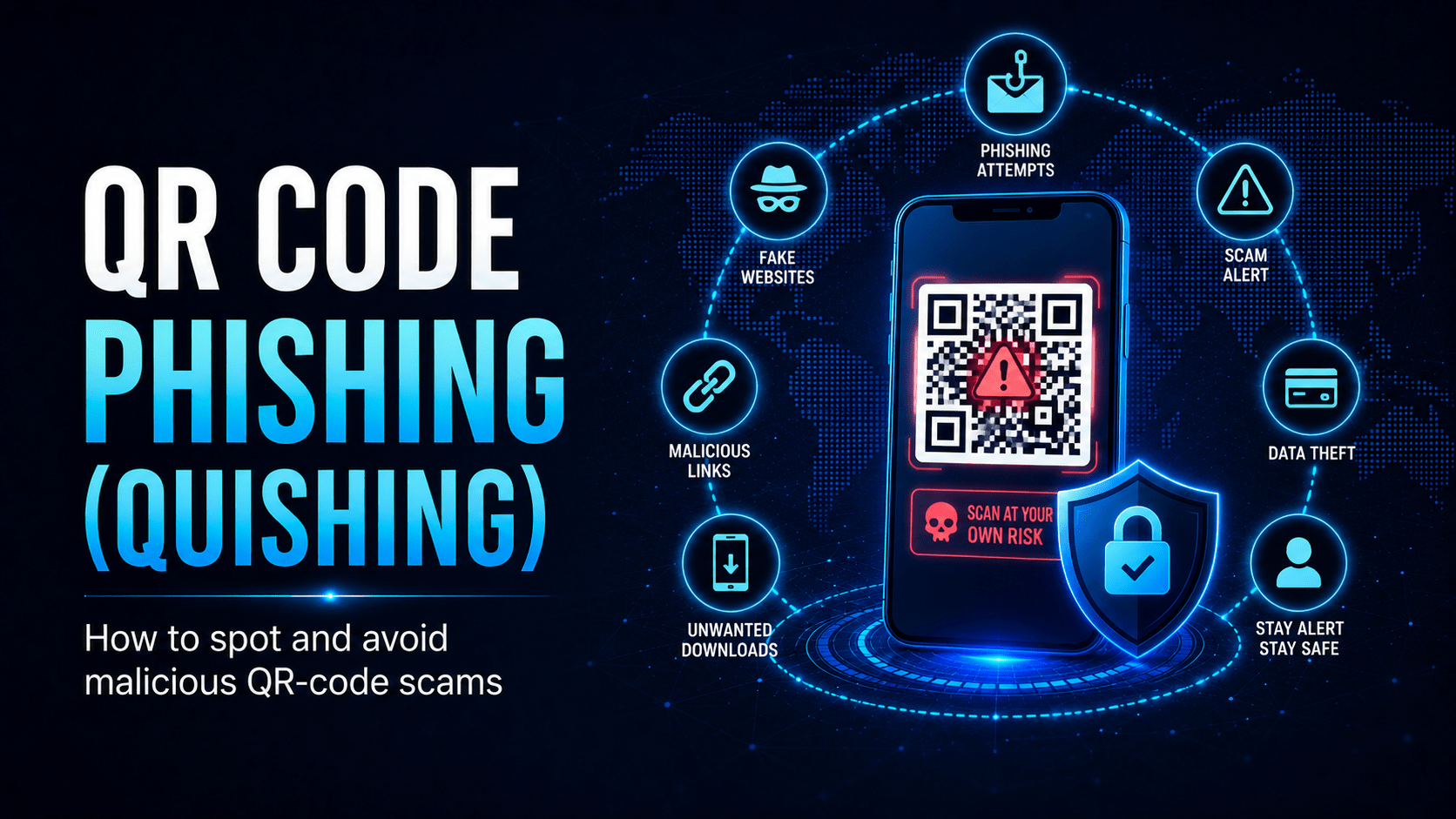
QR code phishing, known as quishing, hides a malicious URL inside a QR code image and slips past traditional email security tools. Attackers use it more each year.
The Quishing Attack Chain
Why Quishing Is Effective
- Bypasses email URL filters, because security tools scan text links, not images
- Moves the attack to mobile, where phones lack the endpoint protection of a managed work computer
- Feels familiar, since you already scan QR codes for menus, parking and healthcare
- Creates urgency with lures like “your account needs verification” or “parcel undeliverable”
Common Quishing Lures
| Lure | Impersonates | Goal |
|---|---|---|
| “Verify your M365 account” | Microsoft | Steal work credentials |
| “Your parcel needs a fee” | Australia Post / DHL | Credit card theft |
| “Complete your MFA setup” | IT department | Account takeover |
| “Your payslip is ready, scan to view” | HR/payroll | Credentials or financial info |
| Parking payment station | Council / operator | Credit card theft |
⛔ Important
Never scan a QR code in an unexpected email. Microsoft, Australia Post, your bank, and your IT team will never ask you to scan a QR code to verify your account. If you receive such an email, report it to IT without scanning.
Physical Quishing: Sticker Attacks
✓ Key Point
Before scanning any physical QR code, look for stickers placed over existing codes. A slightly raised or peeling edge suggests a sticker has been applied on top. Your phone previews the destination URL before it opens, so read it. If the domain looks wrong, stop there.
If You Scanned a Suspicious Code
- Do not enter credentials. Close the browser immediately
- Report to IT with the email or location of the QR code
- If you entered credentials, change your password immediately and report to IT so they can check for suspicious account activity
- Enable MFA if you haven’t already, which limits the damage from stolen credentials
Mobile Techs IT Consulting
Would your staff scan that QR code?
Quishing slips past email filters and lands on personal phones your business doesn’t control. Mobile Techs IT Service helps Gold Coast businesses close the gap: advanced email security that inspects QR codes, mobile device management, MFA that limits stolen-credential damage, and phishing-awareness training that covers the newest tricks. Home users welcome too, on-site or remote, anywhere in Australia.
Boost your phishing defences Talk to us first
Call 1300 644 588 · office@mobiletechs.com.au
More on our managed IT services and remote security audit.