How to secure your work smartphone or tablet, and what to do if a device is lost or stolen.
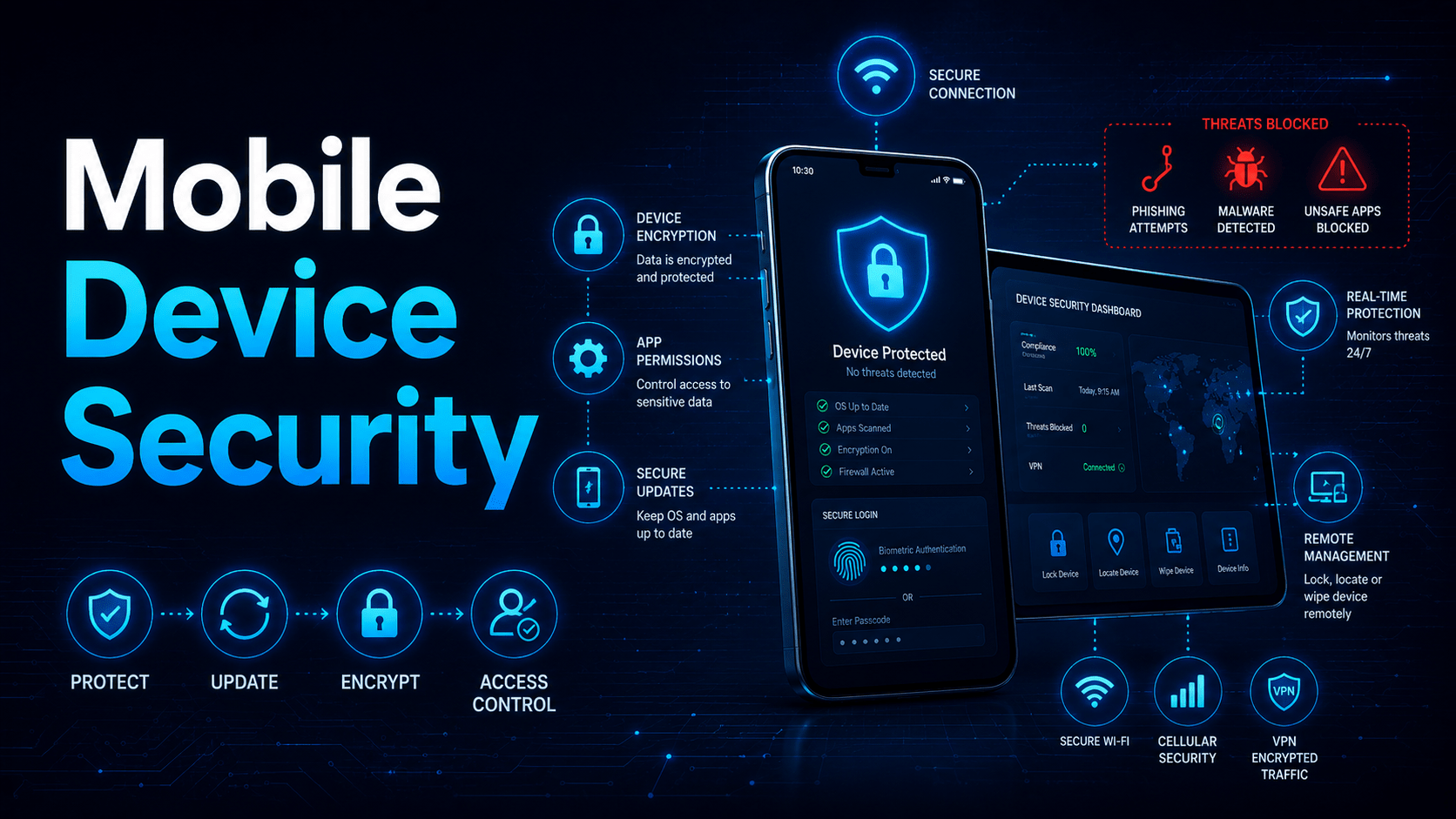
Mobile Device Security
Mobile Attack Surface
Essential Mobile Security Settings
| Setting | Why It Matters |
|---|---|
| Screen PIN/biometrics (6+ digit PIN) | Prevents access if phone is lost or stolen |
| Full-device encryption | Most modern phones enable it by default. Verify in settings |
| Remote wipe enabled (Find My / Find My Device) | Lets you erase data if phone is lost |
| Auto-lock after 30–60 seconds | Reduces window for physical access |
| OS automatic updates enabled | Patches security vulnerabilities quickly |
| App permissions reviewed | Revoke location/microphone/camera from apps that don’t need them |
App Safety
Smishing (SMS Phishing)
- Australia Post / couriers (“your parcel is held, pay $3.50”)
- Your bank (“unusual activity detected, click to verify”)
- The ATO (“you have a refund, click to claim”)
- Toll road providers (“outstanding toll payment”)
If Your Device Is Lost or Stolen
- Immediately use Find My (iOS) or Find My Device (Android) to locate and, if necessary, remotely wipe it
- Change passwords for your email and any accounts accessible from the device
- Contact your bank if banking apps were on the device
- Report to IT if the device had work data or MDM (Mobile Device Management) enrollment
- File a police report if stolen, required for insurance claims
Mobile Techs IT Consulting
How much company data walks out the door each night?
Every staff phone with work email on it is a pocket-sized copy of your business, and phones get lost, stolen and phished. Mobile Techs IT Service helps Gold Coast businesses get their mobile fleet under control: MDM enrolment with remote wipe for lost devices, enforced screen locks and encryption, sensible BYOD policies that separate work data from personal, and setup of secure email and VPN on staff phones. Home users welcome too, on-site or remote, anywhere in Australia.
Get your mobile devices secured Talk to us first
Call 1300 644 588 · office@mobiletechs.com.au
More on our managed IT services and remote security audit.