How physical security practices protect your organisation’s information.
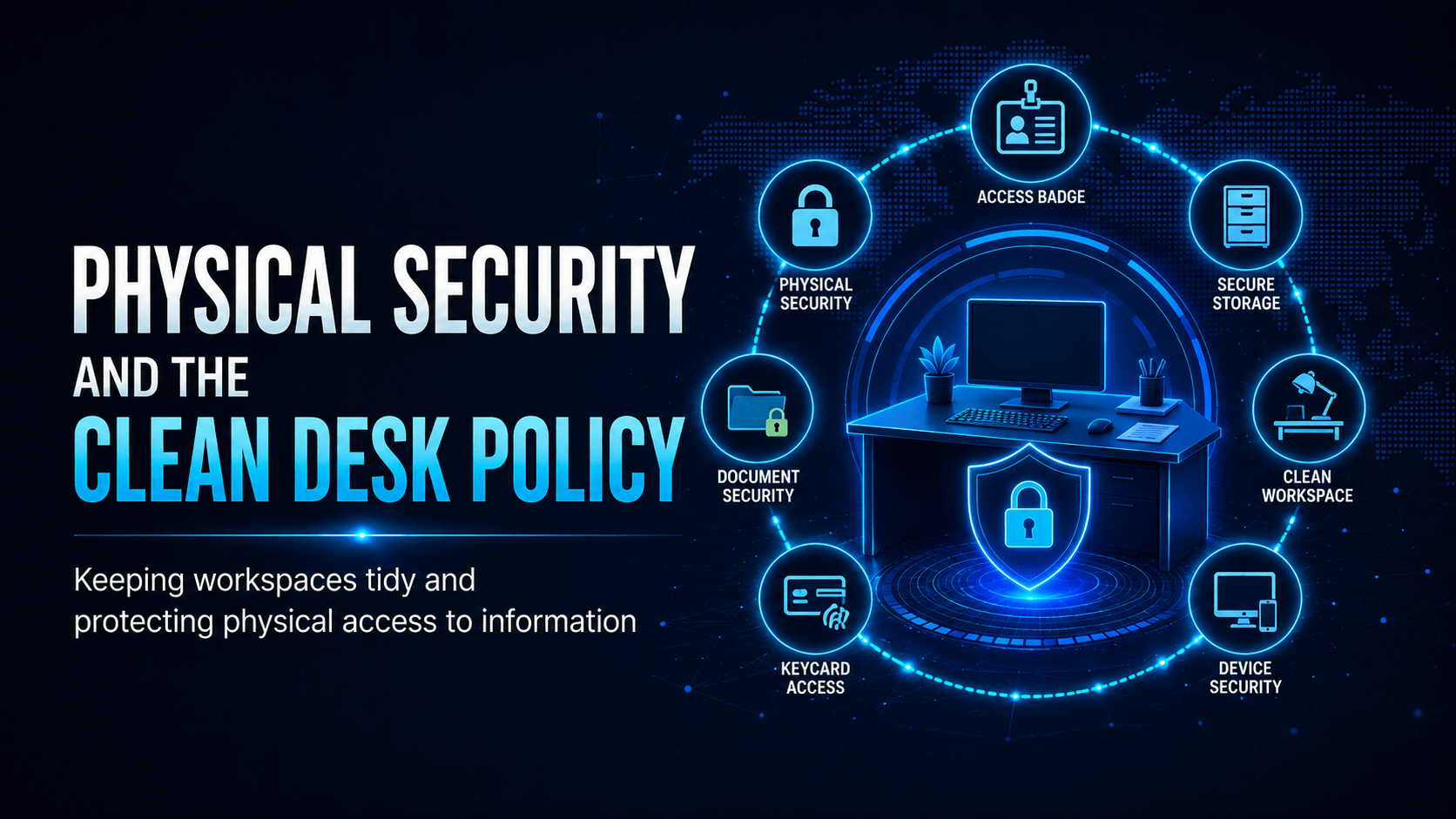
Physical Security and the Clean Desk Policy
Why Physical Security Matters
- Boot from a USB drive to bypass Windows/macOS login entirely
- Extract the hard drive and read it in another machine
- Install a hardware keylogger to capture every keystroke
- Access files left visible on screen
- Take photographs of sensitive documents, whiteboards, or screens
The Clean Desk Policy Checklist
The Screen Lock Rule
- Windows:
Win + L - macOS:
Cmd + Ctrl + Q - Or set auto-lock to trigger after 2–5 minutes of inactivity
What Must Never Be Left Visible
| Item | Safe Handling |
|---|---|
| Printed customer/patient data | File or shred immediately, never leave on desk |
| Passwords written down | Never write them down. Use a password manager |
| Confidential meeting notes | Lock in a drawer; shred when no longer needed |
| USB drives with data | Lock away or return to IT when not in use |
| Visitor passes / ID cards | Collect and deactivate immediately after the visit |
| Whiteboards with sensitive info | Erase before leaving the room |
Tailgating and Access Control
Printing Sensitive Documents
- Retrieve printed documents immediately, don’t leave them in the tray
- Use PIN-protected printing (where available) so documents release when you are standing at the printer
- Shred sensitive documents using a cross-cut shredder. Strip-cut shredding can be reassembled
Mobile Techs IT Consulting
Would an unlocked screen undo all your security?
The best firewall in the world can’t stop someone sitting down at an unattended, unlocked PC. Mobile Techs IT Service helps Gold Coast businesses close the physical gaps: automatic screen-lock and device policies enforced across every machine, full-disk encryption so a stolen laptop or drive is useless, secure wiping and disposal of old computers and hard drives, and practical office IT setups that make the secure way the easy way. Home users welcome too, on-site or remote, anywhere in Australia.
Tighten up the physical side Talk to us first
Call 1300 644 588 · office@mobiletechs.com.au
More on our managed IT services and remote security audit.