Understand the unique security risks of remote work and learn practical steps to protect business data at home.
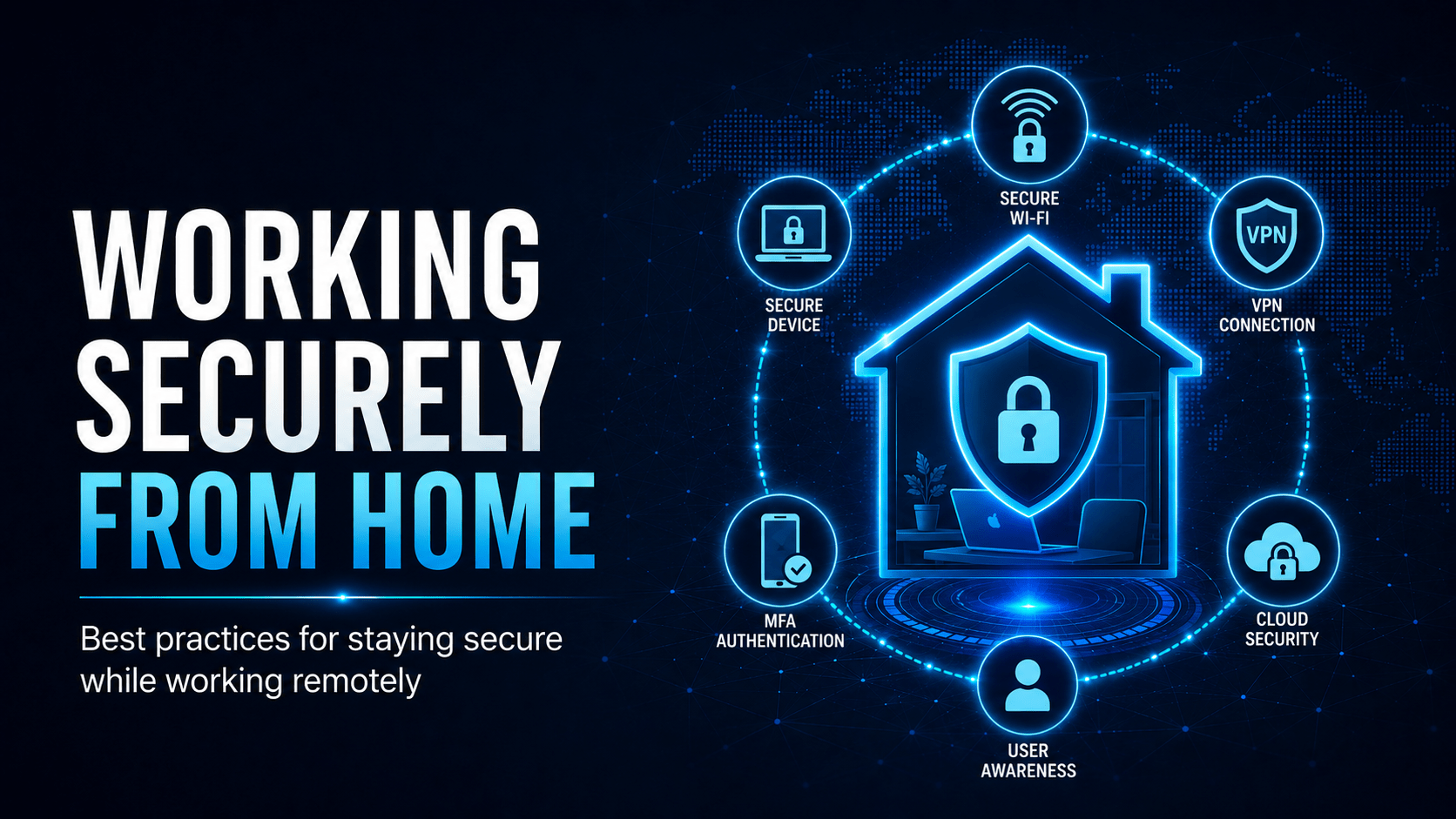
Working Securely from Home
Remote work has become standard for many organisations. But home environments lack the security controls that office networks provide — no enterprise firewall, no network monitoring, and often shared devices and networks.
Home Network Security Architecture
Securing Your Home Router
Your home router is the gateway between your home and the internet. It requires almost as much attention as a corporate network device:
⛔ Important
Default router credentials are publicly known. Attackers scan for routers with default passwords (admin/admin, admin/password). Change the admin password immediately and check the manufacturer’s website for firmware updates — router firmware vulnerabilities are exploited extensively.
Setting
Recommendation
Admin password
Change from default — use a strong unique password
Wi-Fi password
WPA3 or WPA2, minimum 16 characters
Router firmware
Check for updates; enable auto-update if available
Guest network
Enable for IoT devices and personal devices — isolates them from work devices
Remote management
Disable unless you specifically need it
UPnP
Disable — it can automatically open ports attackers exploit
Using a VPN for Work
A VPN (Virtual Private Network) encrypts traffic between your home computer and your organisation’s network. It protects against:
Eavesdropping on your home Wi-Fi (if compromised)
ISP logging of your work browsing
Attacks from other devices on your network
✓ Key Point
Always connect to your organisation’s VPN before accessing internal systems, file shares, or sensitive applications when working remotely. Check with IT whether you should use a split-tunnel VPN (only work traffic through VPN) or a full-tunnel VPN (all traffic through VPN). Don’t use personal/free VPN services on work devices.
The Home Environment Checklist
Screen privacy — ensure your screen can’t be seen by family members when working on confidential matters
Headphones — use them for calls discussing sensitive topics
Clear desk — the same clean desk policy applies at home
Work/personal separation — avoid accessing work data on personal devices where possible
Lock your screen — even at home; children or visitors may walk past
Video Calls from Home
⚠ Warning
Before a video call, check your background for:
– Whiteboards or documents with visible information
– Other screens visible in the background
– Personal items you would prefer clients/colleagues not to see
Use a virtual background or blur if in doubt — but be aware that some sensitive discussions may warrant delaying until you are in a more private setting.
Mobile Techs IT Consulting
Is your remote work setup actually secure?
Your business is only as safe as its least secure home office. Mobile Techs IT Service sets up secure remote work for Gold Coast businesses — company VPNs, hardened home routers, separated work and personal networks, and properly managed work devices — so your team can work from anywhere without opening a back door into your business. We help home users secure their setups too, on-site or remotely, anywhere in Australia.