You cannot remember 80 unique passwords, so stop trying. How password managers work, the anti-phishing benefit most people miss, and how to adopt one without a heroic weekend.
Password Managers in Practice
Every account needs a unique, strong password. With 80+ accounts in a working life, you cannot hold up your end of that bargain from memory, and for most people what gives is uniqueness. One favourite password, lightly seasoned (
Winter2024!, Winter2025!), reused everywhere.That reuse is what attackers harvest. When one website is breached, they replay the stolen passwords against email, banking and business systems within hours, an attack called credential stuffing. A breach at the weakest site you use can unlock your bank.
The Fix: Stop Remembering Passwords
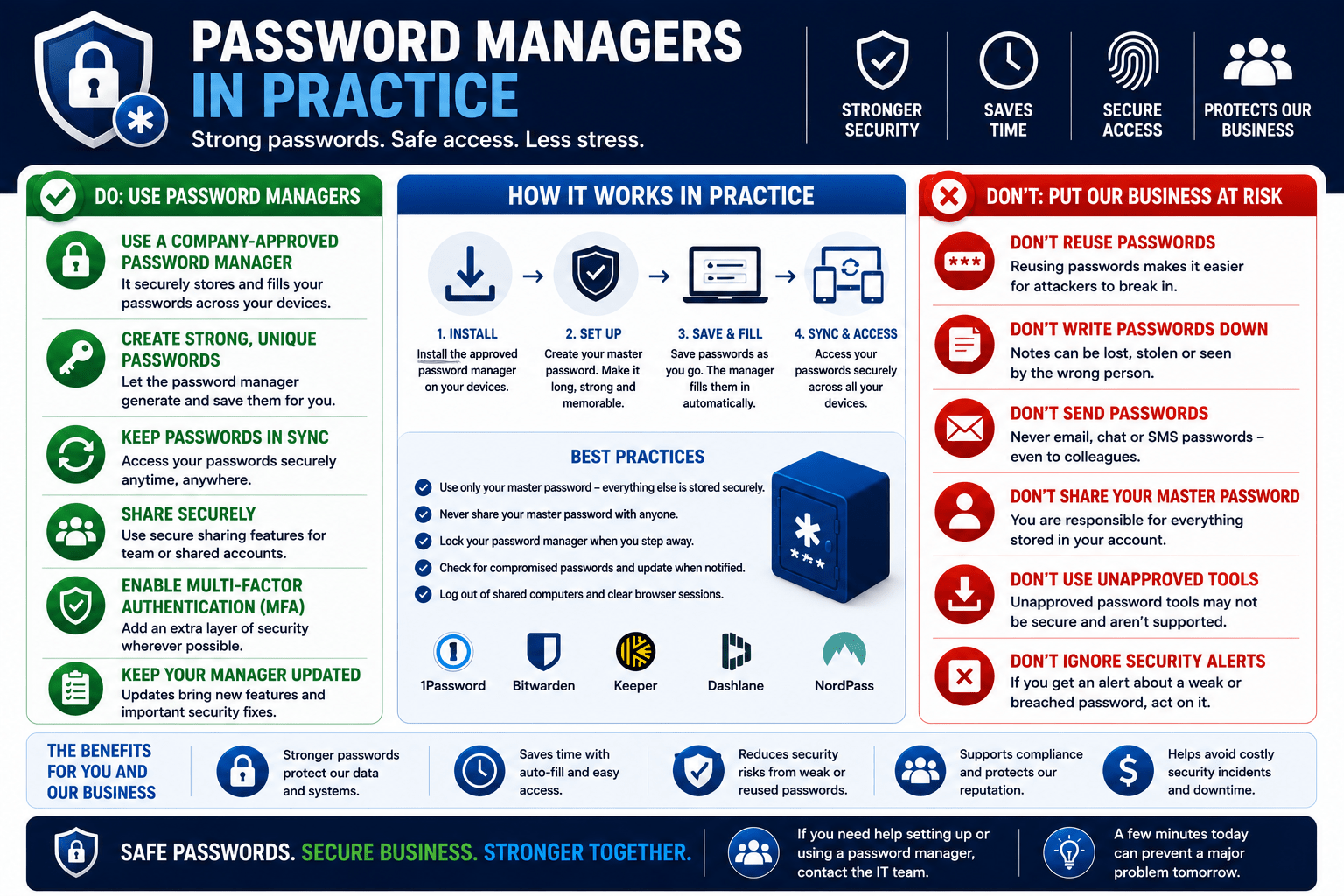
A password manager is an encrypted vault that generates, stores, and fills your passwords. You remember one secret, a long master passphrase, and the manager handles the rest:
- Generates random passwords (
kX9$mQ2#vL8pWn4z) that never repeat - Stores them encrypted, so even the vendor can’t read your vault
- Fills them automatically in the right place, on every device
The Anti-Phishing Benefit
A password manager fills your password only on the exact website it was saved for. Land on
rnicrosoft-login.com instead of microsoft.com and the autofill offers nothing.✓ Key Point
If the password manager won’t autofill on a login page, stop. Either you’re on a lookalike phishing site, or something else is wrong. The manager is matching the site’s identity, a check people are bad at and software is reliable at. Don’t “help” by pasting the password in manually. Go to the site by its known address instead.
Doing It Right
Use the company-approved manager for work accounts. IT can recover access when someone leaves, enforce policy, and support you, none of which is true of a personal app holding work credentials.
Make the master passphrase long and unique. Four or more random words (
paddock-lantern-quietly-birch) beats any short complex string. This one secret protects all the others: never reuse it anywhere, and never share it.Turn on MFA for the vault itself. The manager holds the keys to everything, so it deserves the strongest lock you have.
Migrate as you go. No need for a heroic weekend: each time you log in somewhere, save the account and let the manager replace the password with a generated one. Start with email and banking, the accounts that reset all the others.
⚠ Warning
What a password manager is not: a spreadsheet called
passwords.xlsx, a note on your phone, a Word doc in your drafts, or the same three passwords “but organised”. Those are plaintext lists, readable by malware, a phone thief, or anyone who gets into that account. A real manager keeps the vault encrypted and locked behind your passphrase and MFA.What About the Browser’s Built-in Manager?
Browser password saving in Chrome, Edge or Firefox beats reuse. Dedicated managers are still stronger for work use: proper vault encryption independent of your browser profile, secure sharing with your team instead of Slacking a password, breach alerts when a saved site is compromised, storage for more than just passwords (MFA codes, licence keys, notes), and IT-managed recovery. If the company provides one, use it. If your browser is saving work passwords into a personal profile synced to a personal account, fix that this week.
Getting Started Checklist
- Install the company-approved password manager (ask IT which one).
- Create a long, unique master passphrase of four or more random words.
- Enable MFA on the vault.
- Move your email and banking logins in first; let each get a generated password.
- Save each further account as you naturally log in.
- Delete the spreadsheet or notes file afterwards, properly.