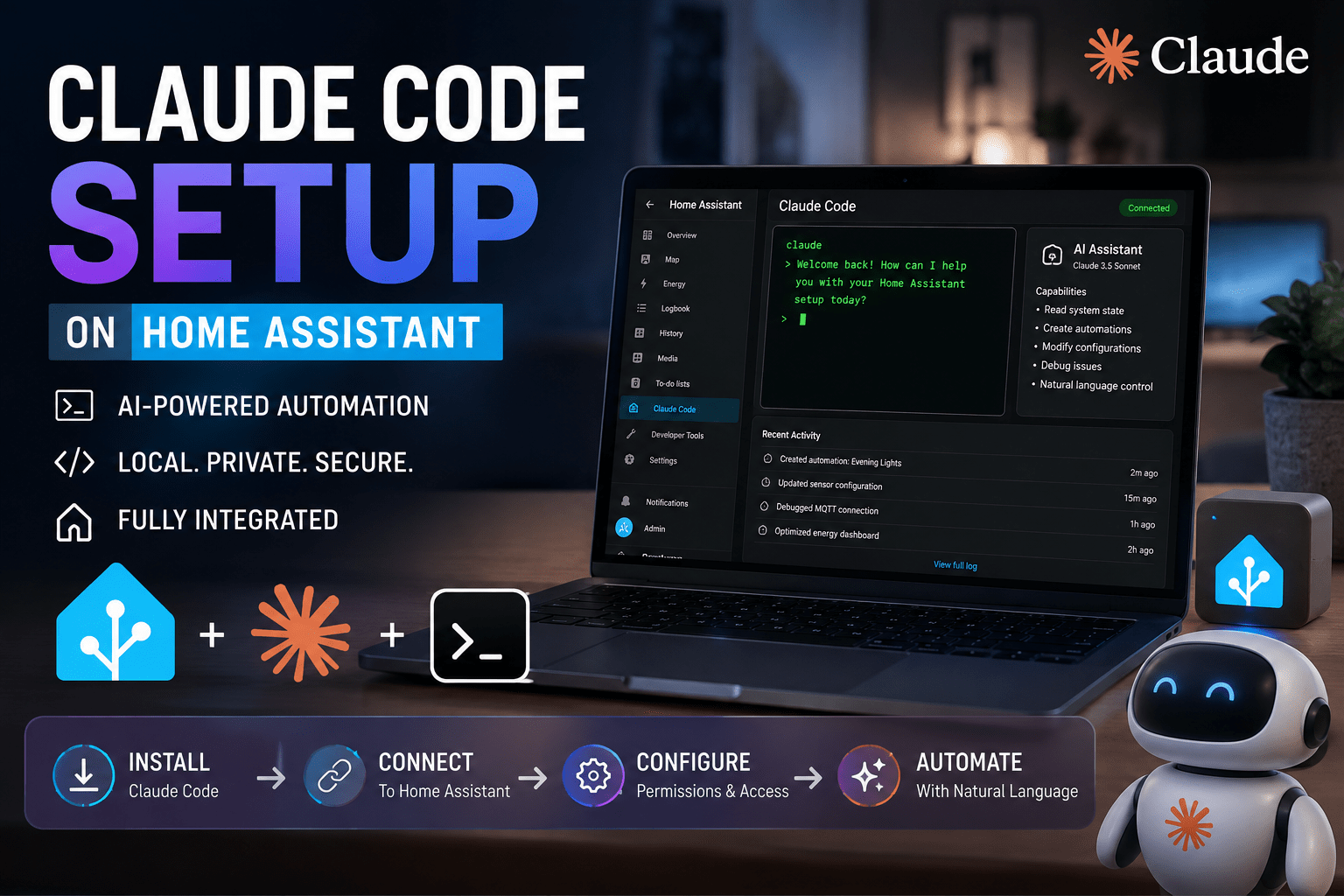
Home Assistant runs the house. Claude Code runs in a terminal and can read files, run commands and talk to other services over MCP. Connect the two and you can ask Claude to check the state of every exposed device, write automations, dig through logs and fix a broken YAML block, from the same window you use for everything else.
This guide covers the built-in Home Assistant MCP Server integration, connecting Claude Code to it, day-to-day use, and Remote Control so you can drive the session from your phone.
What you need
- Home AssistantVersion 2025.2 or later. The MCP Server integration ships with core, so there is nothing to install from HACS.
- Claude CodeInstalled on a Mac, Linux box or Windows with WSL, signed in with a claude.ai account. Remote Control needs a Pro, Max, Team or Enterprise plan; an API key alone will not do.
- A reachable URLOn the same network,
http://homeassistant.local:8123works. From anywhere else you need Nabu Casa, a reverse proxy or a VPN. Remote Control does not change this: the Claude Code process still has to reach Home Assistant itself.
Step 1: turn on the MCP Server in Home Assistant
- Open Settings > Devices & services.
- Select Add Integration and search for Model Context Protocol Server.
- Leave Control Home Assistant enabled if you want Claude to change device state as well as read it.
The server sits at /api/mcp and uses the same Assist API your voice assistant uses. It only sees entities you have exposed. Go to Settings > Voice assistants > Expose and check the list before you connect anything. If a device is not exposed, Claude cannot see it, let alone control it.
Step 2: connect Claude Code
Claude Code speaks the remote MCP protocol directly, so no proxy is needed. In your shell:
claude mcp add-json "HA" '{
  "type": "http",
  "url": "https://your-home-assistant-url/api/mcp",
  "oauth": {
    "clientId": "http://localhost:12345",
    "callbackPort": 12345
  }
}' --client-secretSwap in your own URL, but keep clientId as http://localhost:12345. It points at the callback server Claude Code spins up on your machine, and Home Assistant uses that as the OAuth client ID. Putting your Home Assistant address there breaks the login.
Then:
- Run
claude. - Type
/mcp, pick HA and choose Authenticate. - A browser tab opens on your Home Assistant login. Sign in and approve the connection.
Back in the terminal, /mcp should show HA as connected. If the browser step fails repeatedly, check the URL and port, then look in ip_bans.yaml in your config directory. Home Assistant bans IPs after enough failed logins, and a few typos during setup can trip it.
If you would rather not use OAuth, create a long-lived access token under Profile > Security and run a local mcp-proxy instead. The Home Assistant docs cover that route for Cursor and Claude Desktop, and the same config works in Claude Code.
Step 3: use it
Claude will ask permission before each tool call the first time. Say yes, or use /permissions to allow the Home Assistant tools for the session.
Some prompts that earn their keep:
What is on right now that should not be at 11pm?
Claude pulls the live context snapshot and lists lights, media players and switches by area.
Turn off everything in the office and set the hallway to 20 percent.
Same commands as Assist, without the wake word.
Write an automation that turns the porch light on at sunset if nobody is home, and off at midnight. Put it in automations.yaml.
Claude checks the entity IDs against what Home Assistant exposes before it writes anything, which cuts most of the copy-paste errors people make by hand.
Why did the porch light automation not fire last night?
Claude reads the YAML, matches entity names against what the MCP server reports, and tells you the trigger references a sensor you renamed three months ago.
For file editing, run Claude Code from a directory that contains your Home Assistant config. On Home Assistant OS, the Samba add-on or an SSHFS mount gets the config folder onto your machine. Claude then has the MCP server for live state and the filesystem for configuration, which is the combination that makes it useful.
Remote Control: run it from your phone
Claude Code’s Remote Control links a session on your machine to the Claude mobile app or claude.ai/code. The session keeps running locally, with your MCP connection and files. Your phone is a window into it.
Start it from your Home Assistant config directory:
claude remote-control --name "Home Assistant"Press the spacebar to show a QR code. Scan it with the Claude app on iOS or Android and the session opens. Or open Code in the app and pick it from the list.
If you are already in a session, /rc does the same thing without restarting.
From the phone you can send prompts, approve tool calls, attach a photo of a wiring diagram, and stop a task that is going sideways. Permission prompts queue while you are away and turn up as push notifications if you enable Push when actions required under /config.
- The machine running Claude Code has to stay awake and online. On a home server, start the session inside
tmuxso it survives an SSH disconnect. - Each terminal session supports one remote connection.
claude remote-controlserver mode serves several at once. - The transcript is stored on Anthropic’s servers while Remote Control is connected. Tool execution and file access stay local. If that trade-off does not suit you, run Claude Code over SSH instead.
Security notes
Expose only the entities you want an AI to touch. Locks, garage doors and alarm panels are a judgement call; you can leave them out of the exposed list and still get value from everything else.
Use OAuth over long-lived tokens where you can. A token in a config file is a token that can leak. If you must use one, put it in an environment variable, not the JSON.
Keep Home Assistant patched. The MCP endpoint is an authenticated API surface on your instance, and it inherits every vulnerability in the auth layer.
When it makes sense to call someone
If Home Assistant is a hobby, this is a weekend project. If it runs the lighting, HVAC and access control for a business, the network side matters more than the AI side: a reverse proxy done badly puts your building controls on the open internet.
MobileTechs sets up Home Assistant, secure remote access and AI tooling for Gold Coast businesses. Give us a call if you want it done once.