What MFA is, why it matters, and how to set it up on your work accounts.
Multi-Factor Authentication (MFA)
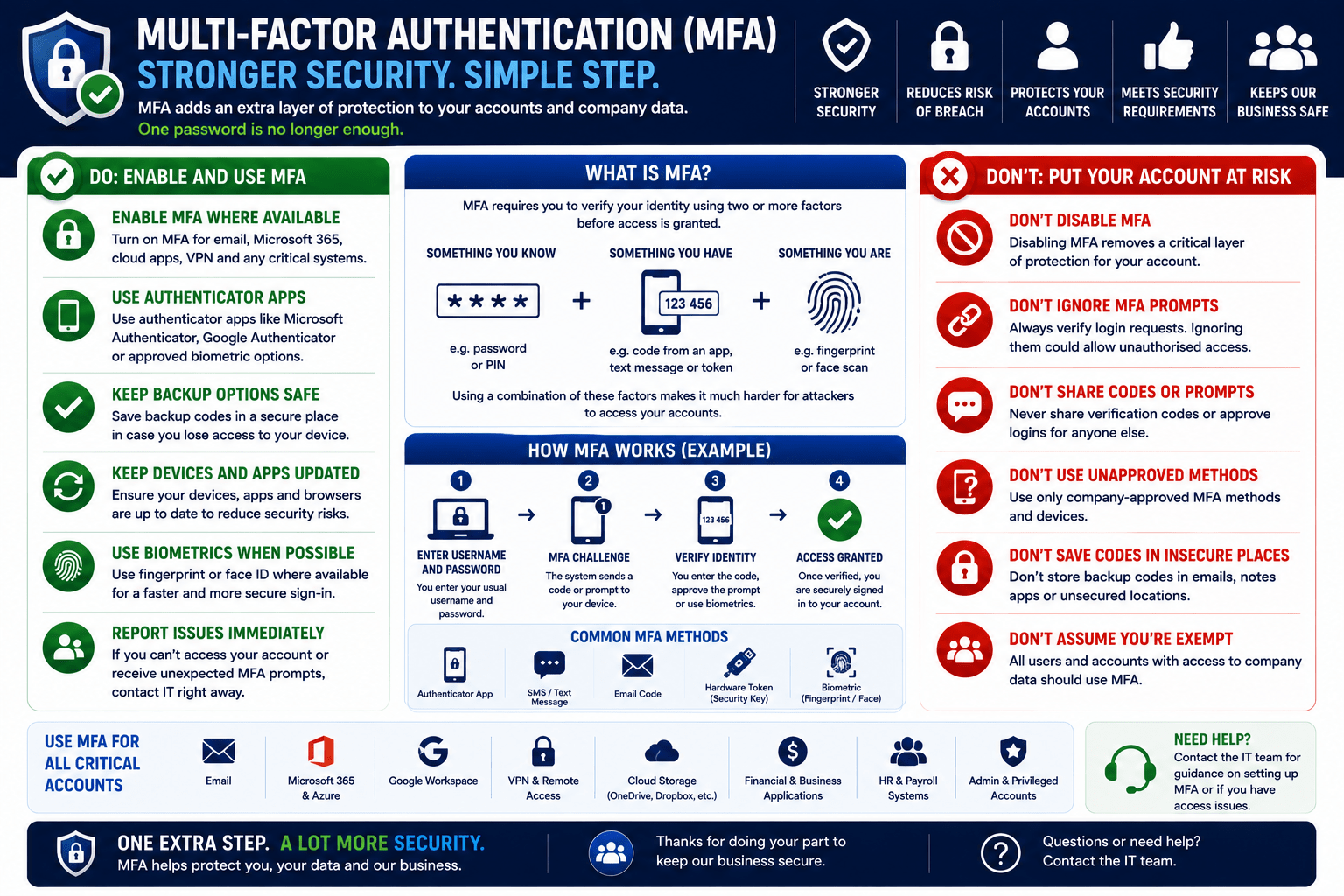
Multi-Factor Authentication adds a second verification step beyond your password. Even if an attacker steals your password, they cannot log in without the second factor.
The Three Factors of Authentication
Authentication methods fall into three categories. True MFA uses at least two different categories:
| Factor | Type | Examples |
|---|---|---|
| Something you know | Knowledge | Password, PIN, security question |
| Something you have | Possession | Authenticator app, hardware key, SMS code |
| Something you are | Inherence | Fingerprint, face recognition, retina scan |
MFA Methods: From Weakest to Strongest
Not all MFA is equal. SMS codes are the weakest (vulnerable to SIM-swap and interception), authenticator apps and push notifications are stronger, and phishing-resistant options like FIDO2 passkeys and hardware keys (e.g. YubiKey) are the strongest.
MFA Fatigue Attacks
Attackers who have stolen your password can trigger repeated MFA push notifications, hoping you tap “Approve” to make them stop. This is called an MFA fatigue attack.
⚠ Important
If you receive unexpected MFA requests you did not initiate, especially several in a row, do not approve them. This means someone has your password. Deny all requests, change your password immediately, and report it to IT.
Enabling MFA: Where to Start
Prioritise MFA on your highest-value accounts:
- Work email and Microsoft 365 / Google Workspace
- Banking and financial accounts
- Password manager
- Any account that has access to sensitive data
✓ Key Point
SMS-based MFA still beats no MFA. Any form of it blocks most automated credential-stuffing attacks. Turn it on today for your most important accounts rather than waiting for the ideal option.
Mobile Techs IT Consulting
Is MFA actually enforced everywhere it should be?
Most businesses have MFA on some accounts and assume it covers everything. The gaps are usually the legacy system that wouldn’t support it, the shared mailbox nobody owns, and the admin account created years ago. Mobile Techs rolls out and enforces MFA properly across Microsoft 365, remote access and business applications, including phishing-resistant options for the accounts that matter most. Home users welcome too, on-site or remote, anywhere in Australia.
Book an MFA reviewTalk to us first
Call 1300 644 588 · office@mobiletechs.com.au
More on our managed IT services and remote security audit.